What file types work best
Note All is made for plain text. The open-file feature works best with
files such as .txt, simple notes, copied code snippets,
lists, drafts, logs, and other documents that do not need rich
formatting. A plain text file contains only characters and line breaks,
so it can be edited easily in almost any text editor.
Files from word processors, such as .docx, presentation
files, spreadsheets, PDFs, and images are not plain text documents.
Those formats include extra structure, styles, images, formulas, or page
information. If you need to work with that content in Note All, export
or copy the text first, then paste it into the editor.
Step 1: Choose Open from the File menu
To load a text file, open Note All, choose File from the menu, and click
Open. You can also press Ctrl + O on Windows or Linux, or
Command + O on Mac. Your browser will show the normal file
picker for your device.
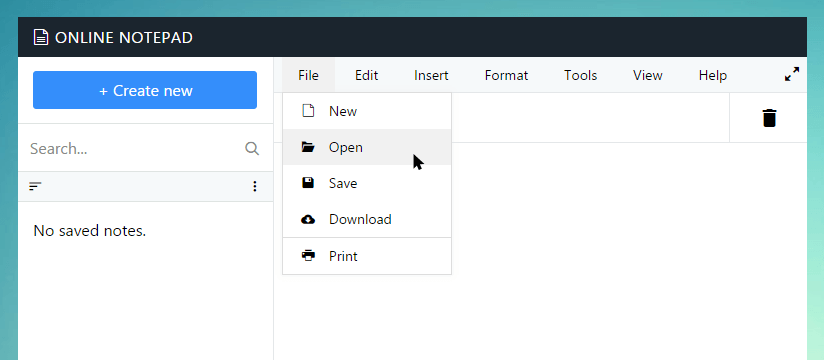
The file opens in your browser for editing. It is not uploaded to a Note All account because the editor works without user accounts.
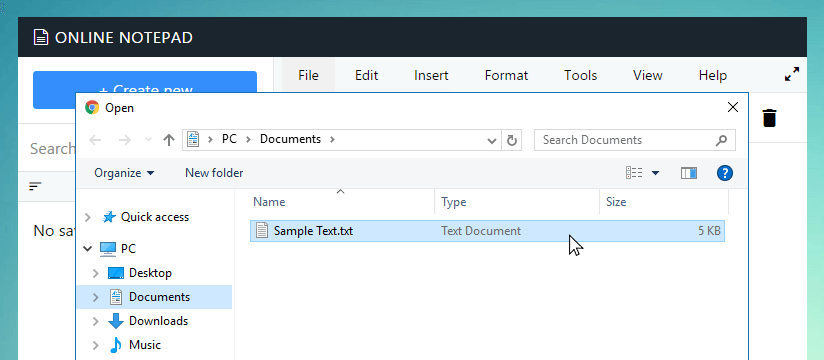
Step 2: Select your text file
In the file picker, find the document you want to edit. If you do not see it, make sure the file uses a plain text format and is stored in a folder your browser can access. On phones and tablets, the file picker may look different, but the idea is the same: choose the file from local storage, cloud storage, or a downloads folder.
Step 3: Review the opened text
After you select the file, Note All reads the text and places it in the editor. Review the first few lines to make sure the file opened correctly. If unusual symbols appear, the original document may use a different character encoding or may not be a real plain text file. In that case, try opening the file in another editor and saving it as UTF-8 plain text before loading it again.
Important note about saving changes
Browsers do not usually let a website overwrite a local file automatically. After editing an opened file, use Save As to download a new copy. You can replace the older file manually if you want. This behavior helps protect your device from websites changing files without your permission.
Common problems
- If the file is empty, confirm that the original file contains text.
- If symbols look broken, save the original file as UTF-8 text.
- If the file is missing, check Downloads, Documents, or cloud folders.
- If the browser blocks access, try moving the file to a normal local folder.
- If you opened the wrong file, use Open again and choose the correct one.