Why saving a copy matters
Note All can autosave drafts inside your browser, but a downloaded file is still the safest way to keep important notes. Browser storage is convenient for quick writing, yet it can be removed when you clear site data, reset the browser, use a private window, or move to another device. Saving a text file gives you a separate copy that you can keep in Downloads, Documents, cloud storage, a USB drive, or any backup folder you trust.
The save option creates a plain text file, usually ending in
.txt. Plain text files are small, easy to open, and work
across Windows, macOS, Linux, Android, iPhone, Chromebooks, and many
office tools. They are a good format for simple notes, lists, drafts,
code snippets, meeting points, and copied text that does not need rich
formatting.
Step 1: Open the Save As option
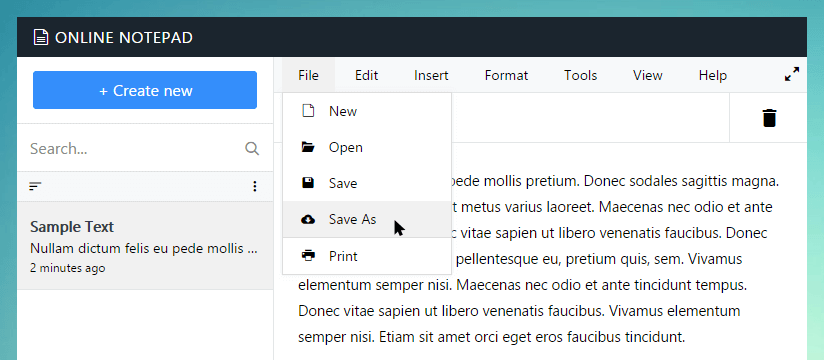
When your note is ready, open the File menu in Note All and choose
Save As. You can also use the keyboard shortcut
Ctrl + Shift + S on Windows or Linux, and
Command + Shift + S on Mac. The shortcut is helpful when
you are writing quickly and do not want to move away from the keyboard.
Tip: Autosave and Save As are different. Autosave keeps a browser draft. Save As downloads a separate file to your device.
Step 2: Choose a filename
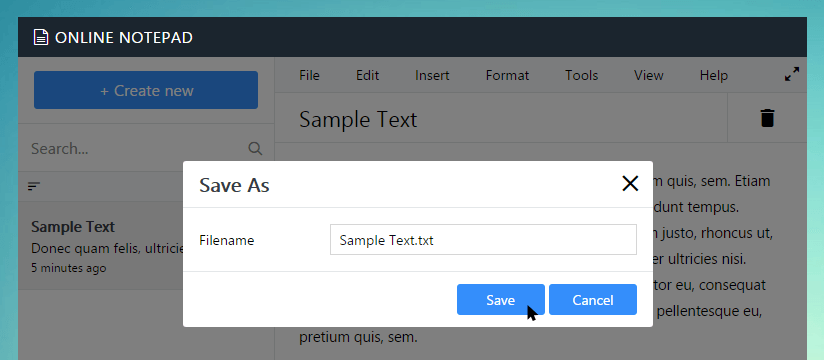
After you choose Save As, Note All asks for a filename. If your note has
a title, the editor can use that title as the suggested filename. If the
title is empty, it may use a name such as Untitled Note. Use a clear
filename that will make sense later, such as
meeting-notes.txt, study-plan.txt, or
draft-message.txt.
Keep the .txt extension if you want a normal plain text
document. You can rename the file later from your computer's file
manager. Avoid using characters that operating systems may not accept in
filenames, such as slashes, question marks, or quotation marks.
Step 3: Find the downloaded file
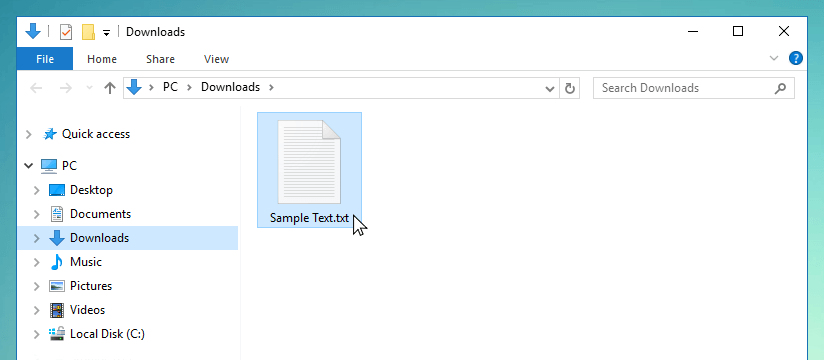
Once you confirm the filename, the browser downloads the file. Most
browsers place new downloads in the Downloads folder unless you changed
the browser setting. Some browsers ask where to save the file every
time. If you cannot find the file, open the browser downloads list with
Ctrl + J on Windows or Command + Option + L
in many Mac browsers.
Backup tips
- Save important notes before clearing cookies or browser data.
- Use descriptive filenames so you can search for notes later.
- Move important files from Downloads to a safer folder.
- Keep a second copy in cloud storage or an external drive.
- Open the downloaded file once to confirm the text saved correctly.
Troubleshooting
If the file does not download, check whether your browser blocked downloads, whether a pop-up or download permission is waiting for confirmation, or whether the device has enough storage. If the filename looks wrong, try a simple name using only letters, numbers, hyphens, and spaces. If the downloaded note opens in another program, right-click the file and choose a plain text editor such as Notepad, TextEdit, VS Code, or another editor you prefer.